Little LUMI Model Hands, throws, and climbing rules
How the cursor, tray icon, and application playground actually move Lumi.
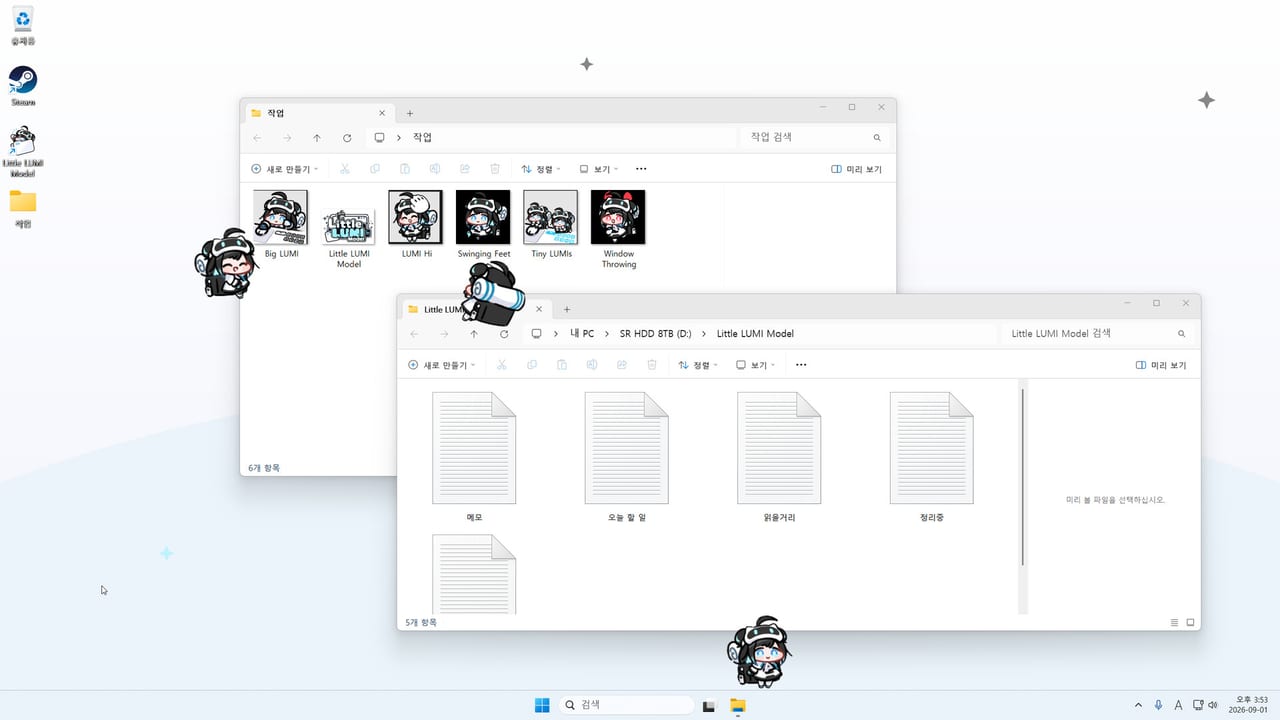
Little LUMI Model is controlled with the mouse, a right-click action list, and the system tray. There is no movement stick. Finish Getting Started first so Settings and the tray icon already exist. This page is the physical layer: how you touch her, how she uses windows as terrain, and how you limit that terrain. The guides hub is the index if you still need install or repair pages.
Cursor: pat, hello, pick up, shake, throw
Park the cursor on the top of her head. When it becomes a hand, rub. That is a head pat. Pats and days together feed the six affection stages on the Home tab; the affection page tracks what those stages unlock. A single click on her body is a hello, not a grab. Nice to Meet You and Head Pat are the two launch names most people trip here; the rest of the fifty live in the Steam overlay and on the achievements page.
Click and hold to pick her up. Shake while she is held if you want the shake reaction. Throw by releasing with movement. She treats the throw as part of the desktop, not as damage: she can land on the taskbar, catch a window edge, or dive off a title bar a moment later. Do not spam throws during a call. If you need her still, focus mode is the quiet switch, not a harder throw.
Credits that drop from the sky are not a control. She notices them, runs over, and picks them up with a chime. You cannot aim the drop.
Right-click actions and favours
Right-click the sprite for the action list. This is one of the two official ways to toggle focus mode (the other is the Home tab). The list is for specific requests, not for every Settings slider. Favours let you register something you do often, such as showing the desktop, so she hops and does it when asked. Register one favour you actually use. A bloated list is how people forget which entry is focus and which is Show Desktop.
If she is mid-climb and hard to right-click, use the tray instead of chasing a title bar.
Tray icon
Screen tab: Show Tray Icon. Keep it on. From the tray you call her to the cursor when she is off-screen, on another monitor, or behind a maximized window. The same menu is Call Another LUMI. Extra copies are local sprites on this desktop, not a second purchase.
If the tray icon is missing, she is still running. Open Settings and turn Show Tray Icon back on.
Climbing rules
She walks the taskbar, climbs the window you are typing in, hangs from title bars, sits on window faces, and will dive off a title bar for no reason. Walls, ceilings, and edges are terrain. Community reports say climbing a browser can steal attention from the page you are typing in. Treat that as a real risk.
Studio LUMI’s store copy is explicit: you pick which applications she is allowed to climb. Put your editor on the allowed list. Take the browser and share tools off if a climb steals focus or a title-bar hang is visible to other people. Per-app hide rules are a community request, not an official list; hide-on-fullscreen is a different switch.
Falling between stacked windows can get her stuck. That is a community report, not a patch note. Unstack the windows or pick her up and throw her to the taskbar. Error help has the recovery order.
Screen limits that are not the mouse
Hide automatically while a fullscreen app is in front is the games-and-meetings switch. Turn it on from Screen before you go fullscreen. If she stays visible, the app may not be exclusive fullscreen; try that mode and re-check the box.
Stay on this monitor only uses the screen picker. Pin her to the display you watch. Moving Day is the achievement name people associate with a monitor change; do not grind it by flicking the picker, because community reports say this lock can freeze animations. If she freezes after a pin, turn the lock off, restart, and read error help.
Opacity and Size change how easy she is to click. 1.0x with readable opacity is the control-friendly default. hqx filtering only applies at 2x, 3x, 4x, 6x, and 8x, which also makes her a larger target.
What not to do with the mouse
Do not enable Window toss because you like throwing the sprite. Window toss makes her throw a window off the screen. Keep sprite throws and window throws separate. Extra copies belong on multiple Lumis; Workshop characters belong on the Workshop guide. Skim behaviors, then use the settings checklist and the first-week list for enable order.
The control test is simple: you can pat her without missing, call her from the tray without hunting the sprite, keep her off the one app that must not lose focus, and hide her for fullscreen without a fight. If any of those four fail, fix that before you add toys, voices, or a Parade.
Frequently Asked Questions
Quick answers for new Little LUMI Model owners.
How do I pat Lumi versus pick her up?
A pat is a rub on the top of her head once the cursor becomes a hand. A click is a hello. Click and hold picks her up so you can shake or throw. Affection from pats is tracked on affection.
Where is Call to cursor and Call Another LUMI?
Both sit on the tray icon. Enable Show Tray Icon on the Screen tab first. Call Another LUMI is explained on multiple Lumis, not as a mouse combo.
Can I choose which apps she climbs?
Yes. Studio LUMI documents a playground list: you pick which applications she is allowed to climb. Use it to keep her off browsers or share tools that steal focus. Per-app hide rules are still a community request, not an official extra list.
Why does she vanish during a game or a share?
Screen tab: Hide automatically while a fullscreen app is in front. That is intentional. If she stays visible, the app may not be exclusive fullscreen. Focus mode is the quiet toggle for windowed work.
She is stuck between two windows. Is that a control?
No. Community reports describe a wedge between stacked windows. Pick her up, throw her to the taskbar, or unstack the windows. If animations are frozen, follow error help.
Does throwing her throw the window too?
No. Sprite throw is a control on this page. Window toss is an optional extra that you enable separately. Keep it off until you read optional extras.