Little LUMI Model Move Lumi onto your desktop
Steam install, first launch, the Settings tabs, and the first head pat.
Little LUMI Model is a $3.99 USD Steam companion from Studio LUMI, released 3 September 2026, with a 20% intro offer through 17 September 2026. Buy app 5075020, install from your library, and launch. Java is bundled. There is no extra runtime, no second account, and no always-on service. She works offline by default.
The listed OS is Windows 11 x64. Minimum spec is a 2.0 GHz x64 processor, 2048 MB RAM, and 400 MB of disk. If your PC is not on that list, read error help before you expect a clean first run. Official UI languages are English, Japanese, Korean, Simplified Chinese, and Traditional Chinese.
First launch
Startup shows a character chooser. Pick the default Lumi. Extra Workshop characters belong in the Workshop guide, not on day one. Leave “always show the info screen” on for the first session so Settings is not a mystery.
After the chooser she appears on the taskbar. Watch one loop before you grab her: a walk, a climb onto a window edge, a nap, maybe a sprint that ends with a dust puff. Sixty-four behaviours run on 122 hand-drawn frames. You are confirming the overlay is alive.
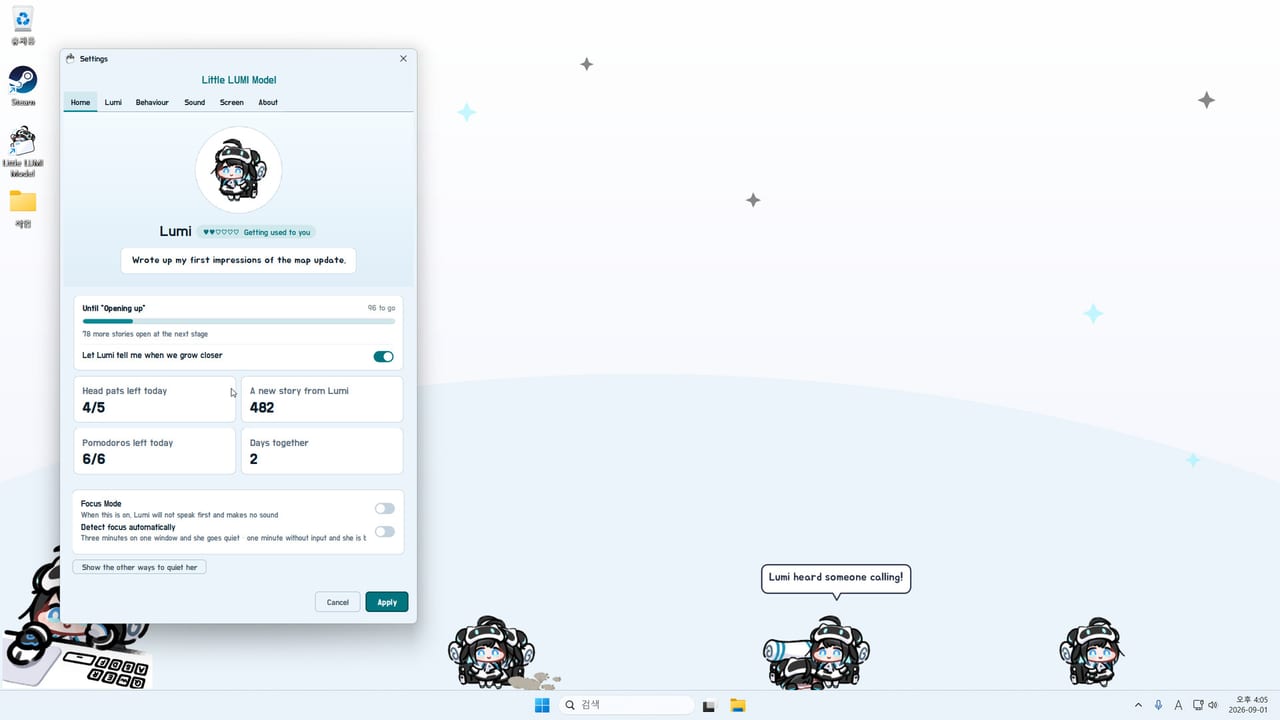
Open Settings from the tray. If the icon is missing, enable Show Tray Icon on the Screen tab. Launch tabs are Home, Lumi, Behaviour, Sound, Screen, and About. Patch 1.1.0 adds a Broadcast tab for OBS; ignore it until you actually stream — see Broadcast mode. Home and Screen are enough for the first hour. The guides hub lists every later article.
Home tab
Home is the relationship panel. It shows the current affection stage (launch example: “Getting used to you”), the next stage (“Opening up”), a stories count, head pats today (example 4/5), pomodoros left (example 6/6), and days together. There are six stages. This wiki does not invent the other four names; wait until Home prints them.
Days together and head pats feed affection and unlock more mumbles and stories. The long version is the affection page. Your only job tonight is one successful pat. Home also toggles focus mode. Leave it off until you have heard her hum once, so you have a baseline of sound.
Lumi, Behaviour, and Sound
The Lumi tab is identity and presentation. Pair it with Screen for size and filter. Behaviour is the playground: Steam’s copy is blunt, you pick which applications she is allowed to climb. Keep File Explorer and your editor allowed on day one. Pull a browser off the list if she steals focus. The full mouse walkthrough is controls.
Sound is volume, effects, and later the voice pack row. If effects are off you will not hear credit chimes, alarms, or a subscribed pack. Leave effects on at a modest volume. Do not subscribe audio until the base pet is stable.
Screen tab
Opacity and Size (for example 1.0x) are the first sliders. Filter has Sharp, Smooth, and hqx. hqx only applies at 2x, 3x, 4x, 6x, and 8x. Hide automatically while a fullscreen app is in front is the meeting-and-game switch; turn it on before you share a screen. Stay on this monitor only uses a screen picker. It is useful on a dual display and it is also a community freeze magnet — if animations lock after you pin her, use error help.
Show Tray Icon should stay on. The tray is how you call her to the cursor and how you call another Lumi. Without the icon you will right-click the sprite for everything, which fails when she is behind a maximized window.
First pat, then stop stacking
Move the cursor onto the top of her head until it becomes a hand, then rub. That is a head pat. A single click elsewhere is a hello. Pick-up, shake, and throw wait for controls. Nice to Meet You and Head Pat are the two names most people trip here; the rest of the fifty sit in the Steam overlay and on the achievements page.
Leave Bongo Lumi, Floating Garden, Pythagoras, and Window toss off. They ship off for a reason. Add one later from optional extras or the optional modes list. Subscribe nothing until you can open Settings, pat her, and hide her for fullscreen. Then use Workshop. A second Lumi is a tray command; wait for multiple Lumis and confirm hotfix 1.0.1 before Parade.
Where to go next
Print the settings checklist as a tab pass. Follow the first-week list if you want a sequence. Taskbar loops are catalogued under behaviors. Patch context is on the launch notes and the updates hub. Store, Workshop, and the listed website streamerlumi.com (AI streamer Lumi / Eternal Return mascot site, not a second store) sit on the links hub.
Day-one success is narrow: she walks, Settings opens, one pat lands, fullscreen hide is on, and you know where focus mode lives. If that loop already fails, skip the toys and go straight to error help rather than stacking more sprites on a frozen overlay.
Frequently Asked Questions
Quick answers for new Little LUMI Model owners.
Do I need to install Java or make another account?
No. Little LUMI Model bundles its Java runtime and uses your Steam library only. It works offline by default. There is no extra launcher and no required login inside the app.
Which Settings tab should I open first?
Home, to see affection and the focus toggle, then Screen for size, tray icon, fullscreen hide, and monitor lock. Behaviour is next if she climbs a window you need to keep still. Use the settings checklist as a full pass.
When should I pat her, and what does Home show?
Pat the top of her head once the cursor becomes a hand. Home shows the current stage (example "Getting used to you"), next stage "Opening up", stories, head pats today, pomodoros left, and days together. Details are on affection.
Should I enable extras, Workshop, or a second Lumi tonight?
No. Finish this page and controls first. Add focus mode before a work block. Workshop, toys, and extra copies each have their own guide.
The overlay never appears. What now?
Confirm Windows 11 x64 and the 2 GB / 400 MB minimum, then follow error help. Do not stack Workshop items on a first launch that already failed.