Little LUMI Model Put Lumi in OBS, not on the taskbar
Patch 1.1.0 adds a Broadcast tab. Start Broadcast mode only when you mean to capture her.
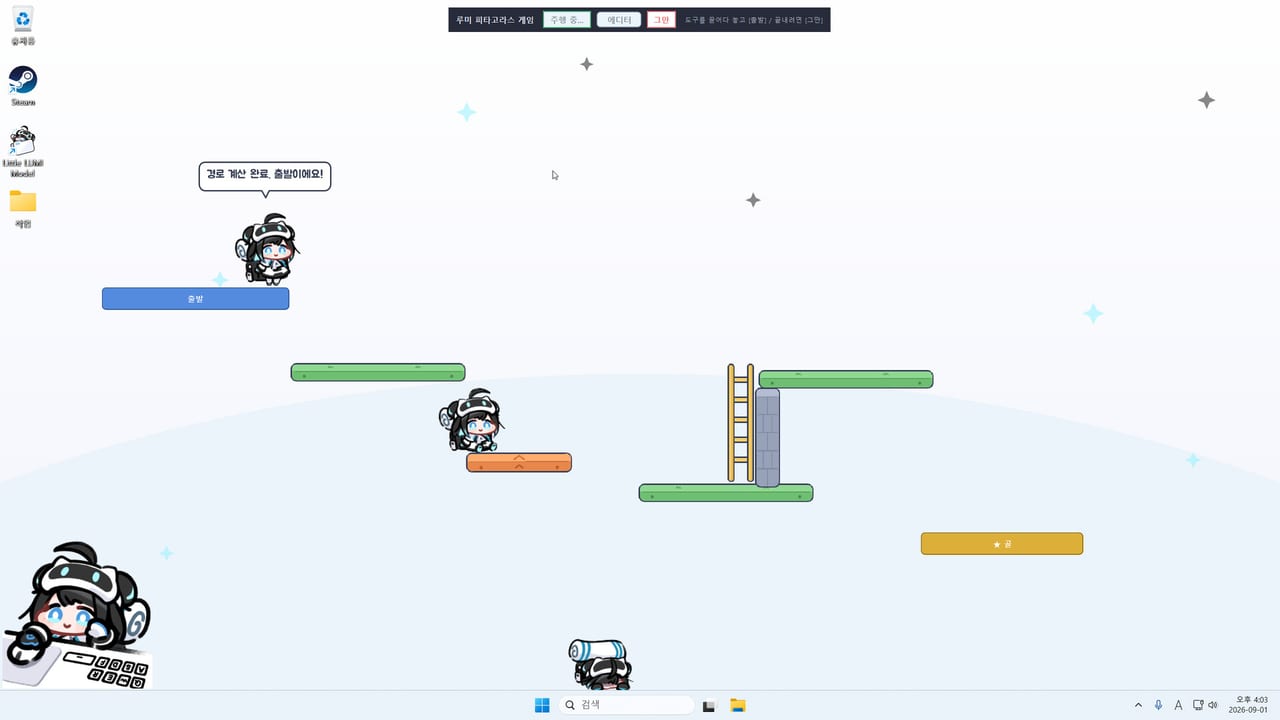
Little LUMI Model 1.1.0 (4 September 2026) added Broadcast mode so you can send Lumi to OBS. Steam’s note is one move: open Settings → Broadcast, press Start Broadcast mode, and Lumi leaves the desktop to live inside a capture surface. This guide is the walkthrough. The official sentence and what 1.1.0 is not are on the 1.1.0 patch page.
Do not confuse this with hide-on-fullscreen. Hide-on-fullscreen takes her off a game or a share. Broadcast takes her off the desktop overlay so you can put her into OBS. If you wanted her walking your real taskbar during a spreadsheet, leave Broadcast stopped.
Before you press Start
Update Steam to 1.1.0. Tray → Quit, then launch from the library. Open Settings. You should see Broadcast next to Home, Lumi, Behaviour, Sound, Screen, and About. If that tab is missing, you are still on 1.0.x. Let the client finish, quit again, relaunch.
If two Lumis still freeze Settings during Parade, install hotfix 1.0.1 as well. Broadcast will not unstick a frozen 1.0 Settings window.
Finish a normal Getting Started loop first: she walks, one head pat lands, tray icon is visible. Stream setup is a second job.
Start Broadcast mode
- Open Settings from the tray.
- Open the Broadcast tab.
- Press Start Broadcast mode.
- Confirm she has left the desktop overlay. The store note says she lives inside a dedicated surface for OBS. Look for that surface on the desktop or in the taskbar — do not invent a window title here. Use whatever 1.1.0 actually draws.
- In OBS, add a source that captures that surface (window capture is the usual class of tool). Size and crop in OBS, not by guessing a wiki screenshot.
- When the stream or recording ends, stop Broadcast mode from the same tab so she can return to the real desktop.
This wiki will not invent an OBS filter stack, a chroma-key hex, or a “Game Capture vs Window Capture” holy war. The patch named OBS. Your OBS version and GPU capture path are yours.
Desktop overlay vs stream overlay
On a work PC you want focus mode, hide-on-fullscreen, and maybe stay on this monitor. Those keep her on your glass and off a meeting.
On a stream PC you often want the opposite of hide-on-fullscreen: she should be visible in the canvas. Broadcast mode is built for that. If you start Broadcast and also leave hide-on-fullscreen on, she can disappear from both places. Turn hide-on-fullscreen off for the session you are capturing, or capture the Broadcast surface only.
Extra Lumis still live on one local desktop. Starting Broadcast with a Parade in motion is a bad test. Stop extras, update, then start Broadcast with one Lumi. Multiple Lumis can wait.
What not to mix on day one of 1.1.0
- Do not stack Window toss while OBS is capturing a window she can pick up.
- Do not treat the Voice Pack as a Broadcast requirement. Voice Pack is Sound-tab audio. Broadcast is a capture path.
- Do not use LUMI Chat’s API key as an OBS plugin. Chat is a separate optional mod.
- Do not expect Steam Deck. The product is Windows 11 x64.
If Start Broadcast mode does nothing
- Confirm About / Steam news shows 1.1.0, not only 1.0.1.
- Fully quit from the tray. Overlay processes ignore a Settings click you already made in a dead instance.
- Launch from Steam, not from a leftover shortcut that still points at an old folder.
- Try with one Lumi and optional extras off.
- If the Broadcast surface appears but OBS is black, that is an OBS capture problem (wrong window, Game Capture on a Win32 surface, exclusive fullscreen elsewhere). Fix it in OBS. The pet already left the desktop as the note promised.
- File a discussion or mail ai.init.alpha@gmail.com with Windows 11 build, 1.1.0 yes/no, Lumi count, and whether the Broadcast surface is visible at all.
Longer error trees sit on troubleshooting. Rank Broadcast as a streamer tool, not a week-one work tool, on the optional modes list.
Trailer and videos
There is no verified YouTube tutorial for Little LUMI Model Broadcast mode at the time this guide was written. The official store trailer remains on the Steam page for app 5075020. This wiki will not embed a guessed video id. When a real how-to lands, it can sit mid-article here — one video, not a dump at the bottom.
Until then, the source of truth is Steam news plus the Broadcast tab in your own Settings window. Press Start only when OBS is the reason you opened Little LUMI Model that hour.
Frequently Asked Questions
Quick answers for new Little LUMI Model owners.
Where is Broadcast mode in Little LUMI Model?
Settings → Broadcast tab, after you install patch 1.1.0 dated 4 September 2026. Press Start Broadcast mode there.
Does Broadcast mode keep Lumi on my taskbar?
No. The 1.1.0 note says she leaves the desktop to live inside a capture surface for OBS. Stop Broadcast when you want the overlay back.
Is this the same as hide-on-fullscreen?
No. Hide-on-fullscreen hides her during games and shares. Broadcast sends her into OBS. Read both before a live stream.
Do I need the Voice Pack to broadcast?
No. Voice Pack is Workshop audio on the Sound tab. Broadcast is a 1.1.0 capture feature. They do not unlock each other.
Why is there no YouTube embed on this page?
No verified Little LUMI Model Broadcast tutorial exists on YouTube yet. Use the Steam store trailer and the in-app Broadcast tab instead of a fake video id.